Local Networks
Configure the LAN interface to set up local intranet networks.
Router IP Pool
Section titled “Router IP Pool”To modify the DHCP configuration, log in to the router admin and go to “Network > Interfaces,” then click the “Edit” button on the row of the “LAN” interface.
Router IP Address
Section titled “Router IP Address”Under the tab of “General Setup”, you can modify the router IP address, netmask, gateway address, broadcast address, and custom DNS servers.
| Field | Default | Description |
|---|---|---|
| IPv4 address | 192.168.20.1 | The IP address that the router uses on the LAN network. |
| IPv4 netmask | 255.255.255.0 | Netmask is used to define how "large" the LAN network is. |
| IPv4 broadcast | N/A | DHCP clients use broadcast to find and send requests to their respective servers. |
DHCP Server
Section titled “DHCP Server”Scroll down and find the section of “DHCP server” settings. Under the “General Setup” tab, you can modify the DHCP IP pool and DHCP lease period.
The DHCP server can automatically configure connected devices’ TCP/IP settings and lease out an IP address from the available IP pool.
To disable the DHCP server, you can select the checkbox of the Ignore interface.
| Field | Default | Description |
|---|---|---|
| Start | 100 | The start of the DHCP IP pool. For example, if the router’s LAN IP is 192.168.20.1 and the netmask is 255.255.255.0, a valid IP address should be in the range of [192.168.20.0…192.168.20.254] * 192.168.20.255 is a particular unavailable address. |
| Limit | 150 | Define the IP addresses the DHCP server can lease out. Continuing from the above example, if the start address is 192.168.20.100 and the server can lease out 150, available addresses will be from 192.168.20.100 to 192.168.20.249. |
| Lease time | 12 hours | The duration of an IP lease. Leased-out addresses will expire after the specified period, and you must request a new DHCP lease. If the device stays connected, its lease will be renewed after half of the specified amount of time passes. For example, if the lease time is 12 hours, then every 6 hours, the device will send a request to the DHCP server asking to renew its lease. The lease time can be set in hours (h) or minutes (m). The minimum time that can be specified is 2min (2m). |
You can set up more configurations on the DHCP server under the “Advanced Settings” tab of the “DHCP Server” settings.
| Field | Default | Description |
|---|---|---|
| Dynamic DHCP | Enable | Enables dynamic allocation of client addresses. If you disable it, you must input a static IP address on the connected devices. |
| Force | Disable | The DHCP force function ensures that the router will always start its DHCP server, even if another DHCP server is already running in the router’s network. *** When connecting the router to another router via LAN cable, the outdoor router will turn to AP mode and obtain the IP address assigned from another router. You will no longer be able to access the router at 192.168.20.1. |
| IPv4 Netmask | NA | Overrides the LAN netmask, thus making the DHCP server think it’s serving a larger or smaller network than it is. |
| DHCP Options | NA | For example, you can assign an MTU value per DHCP with ‘26,1470’ or ‘option:mtu, 1470’. You can add more options by clicking the plus symbol (Services SMS gateway auto-reply plus symbol.PNG) next to the field. |
Physical Settings
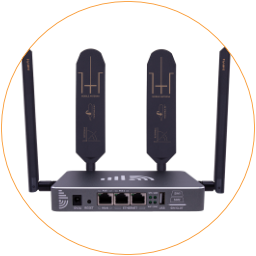
Section titled “Physical Settings”There are three physical RJ45 ports on the EZR23T router. The “LAN” and “PoE & LAN” ports are bound to the logical port eth0.
DHCP Leases
Section titled “DHCP Leases”To check the active DHCP clients, log in to the router admin and go to “Network > DHCP & DNS.” Scroll down and find the section on “Active DHCP Leases.”
Static Leases
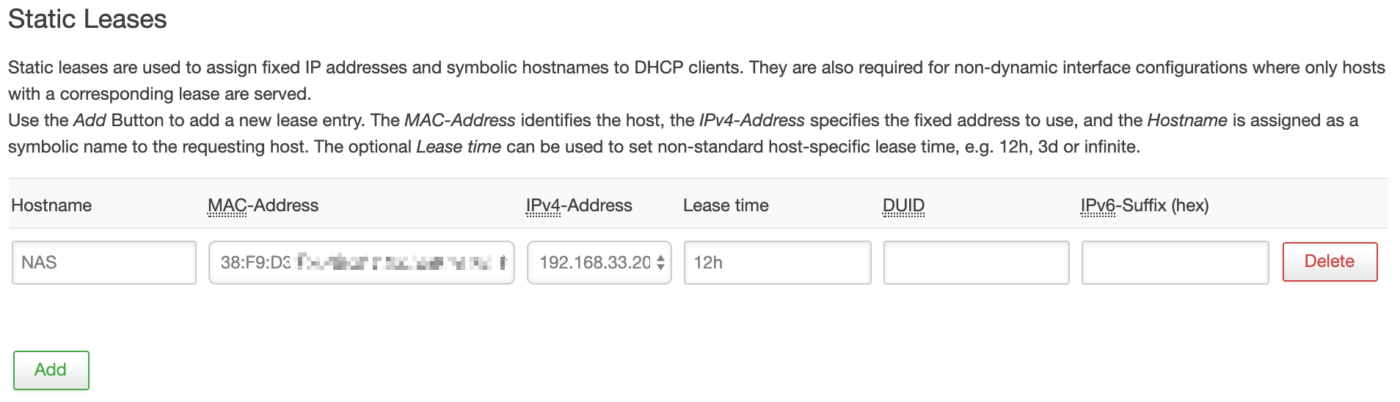
Section titled “Static Leases”Static IP leases reserve specific IP addresses to particular devices by binding them to their MAC address. It’s useful when having a stationary device connected to the network that needs to be reached frequently, such as a NAS, printer, camera, etc.
| Field Name | Default Value | Description |
|---|---|---|
| Hostname | NA | A custom name that describe be linked device |
| MAC Address | NA | MAC address of the linked device |
| IPv4 Address | NA | The desirable IP address that reserved for the specified device |